Set up Inbox-connected channels
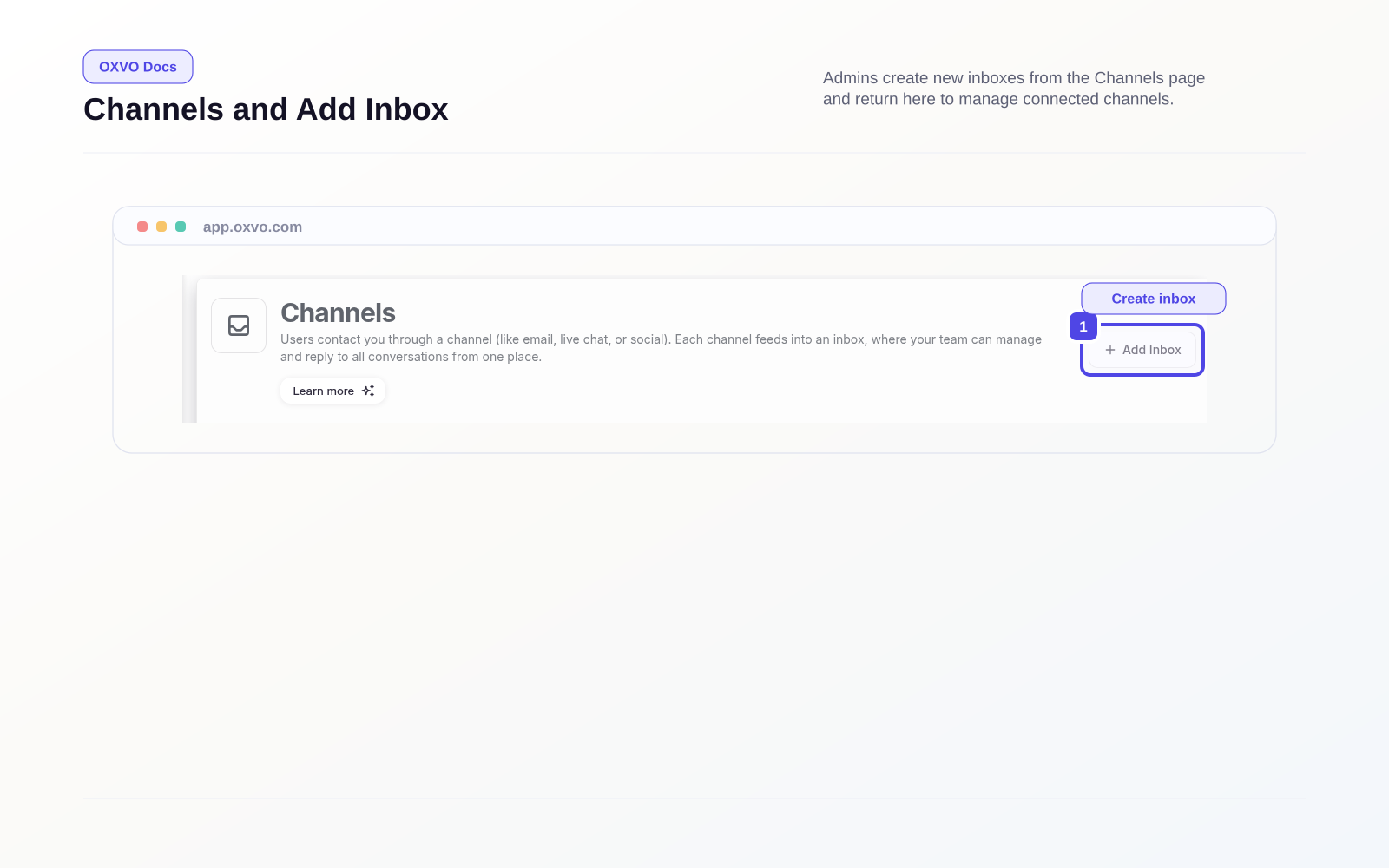
Use Settings → Channels to create and manage every Inbox your team uses.
Set up your first Inbox
- Open Settings → Channels.
- Select Add Inbox.
- Choose the channel type you want to connect.
- Select Connect on the channel card.
- Complete provider authorization or channel details.
- Save and run a test message.
Common channel types include live chat, email, messaging apps, social channels, and API-based inboxes.
Manage channels from one list
The Channels tab provides one searchable list with:
- Channel name and source
- Channel type badges
- Sorting by name, type, newest, or oldest
- Quick access to Inbox settings
Configure each Inbox after creation
After channel creation, open Inbox settings to configure:
- Business hours and availability
- Teammate assignment and collaborators
- Auto-assignment or workflow rules
- Pre-chat form fields and data requirements
- Website widget engagement blocks such as conversation starters, quick links, and widget apps
Remove or replace a channel safely
Before deleting an Inbox:
- Reassign active conversations.
- Export or verify required historical data.
- Confirm no automations depend on that Inbox.
Warning: Deleting an Inbox can break automations, routing, and external channel mappings that depend on it.
Related setup guides
- Browse and connect Apps
- Build widget apps and embedded experiences
- Set custom attributes for forms and routing