Use canned responses for fast, consistent replies
Canned responses are reusable reply templates that help your team respond faster without rewriting common answers each time.
Where to find it
Open the Canned responses page from Settings, or use the direct link.
Open directly: Open Canned Responses
When to use canned responses
Use canned responses when the same customer questions appear repeatedly, such as:
- Account access and verification steps
- Billing and refund policy explanations
- Shipping or delivery status guidance
- First-response acknowledgments
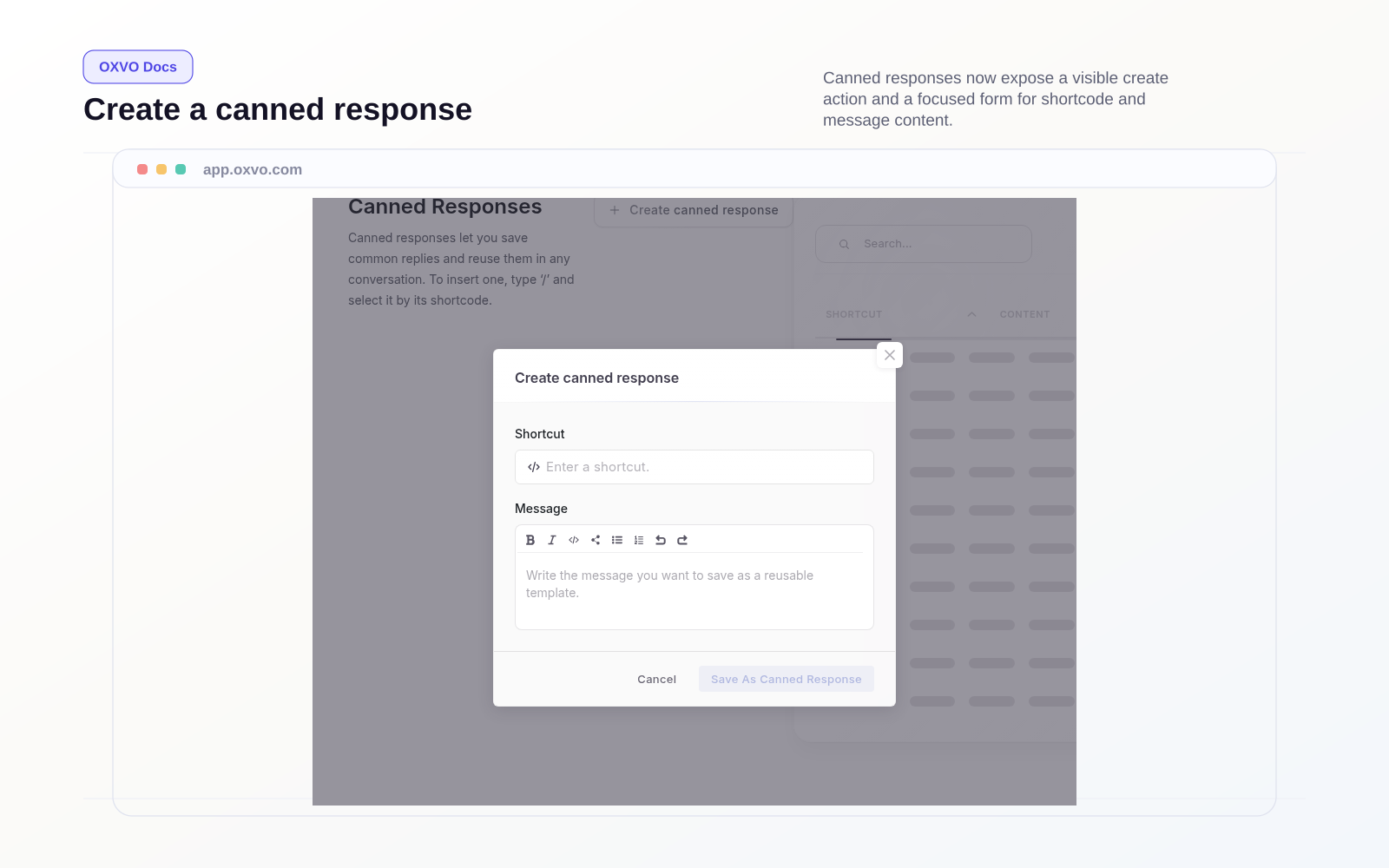
Create a canned response
- Open the Canned responses page.
- Select Create canned response.
- Enter a short code that your team can recognize quickly.
- Write the response content in the editor.
- Save and test in a live conversation.
Manage and maintain your response library
From the canned responses list, you can:
- Search by short code or content
- Edit existing responses
- Delete outdated responses
Tips and edge cases
- Keep each response focused on one use case.
- Use clear short-code naming conventions.
- Review responses monthly to remove outdated policy text.
- Avoid storing sensitive data directly in canned response content.
Tip: Pair canned responses with macros when you need both reusable text and workflow actions in one step.
Related guides
- Use macros for faster, consistent replies
- Automate conversation workflows with rules
- Standardize conversation labels