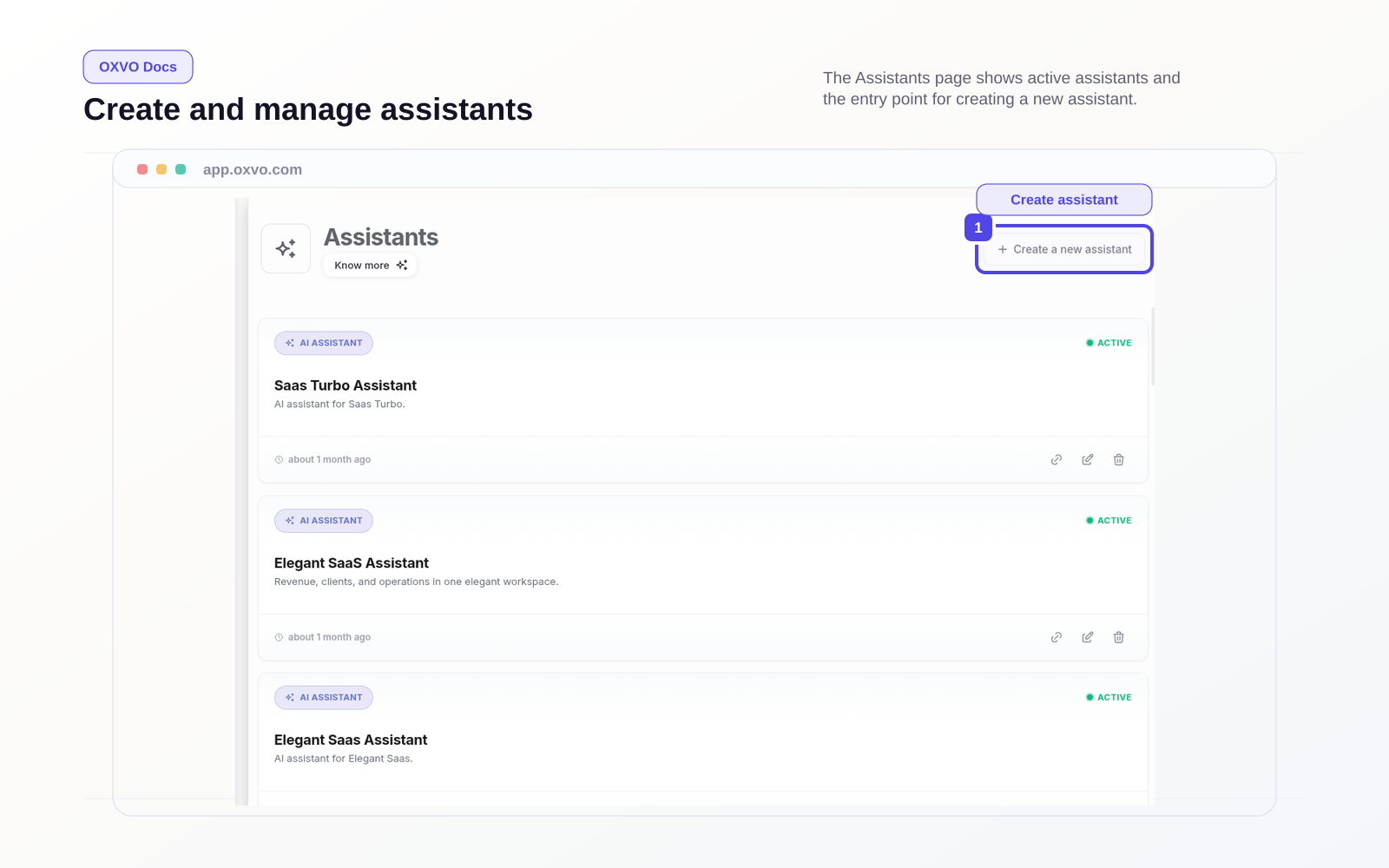
Build and manage AI Assistants
Use Assistants to define how OXVO AI responds, when it should use knowledge, and when it should hand over to a teammate.
Create your first Assistant
- Open OXVO Assistant → Assistants.
- Select Create a new assistant.
- Enter a clear assistant name, a short description, and your product or brand name.
- Enable knowledge tools if the assistant should use FAQ and memory-based answers.
- Enable citations if you want answers to reference sources when available.
- Save the assistant.
Tip: Start with one assistant per customer segment (for example, Sales, Billing, Technical Support).
Configure behavior and response style
After creation, open the assistant settings and tune behavior:
- Instructions: Core response rules and tone.
- System messages: Handoff and resolution messages sent to users.
- Temperature: Lower values for predictable replies, higher values for more creative replies.
- Safety and guardrails: Add rules that block unsafe answers or force escalation.
- Conversation flows: Add scenario-specific instructions for common journeys.
Connect Assistants to Inboxes
Assistants only answer in inboxes they are linked to.
- Open an assistant.
- Go to connected inboxes.
- Select the inboxes where this assistant should be active.
- Save and test with a real conversation.
Note: Each inbox can be linked to one assistant at a time.
Keep quality high in production
- Review AI replies regularly in real conversations.
- Track unresolved or escalated chats and refine instructions.
- Keep assistant scope narrow instead of one “do everything” assistant.
- Use separate assistants when teams need different policies.
Related setup guides